A Step-by-Step Guide to Using SQLite Instead of PostgreSQL
SQLFlash
15 min read
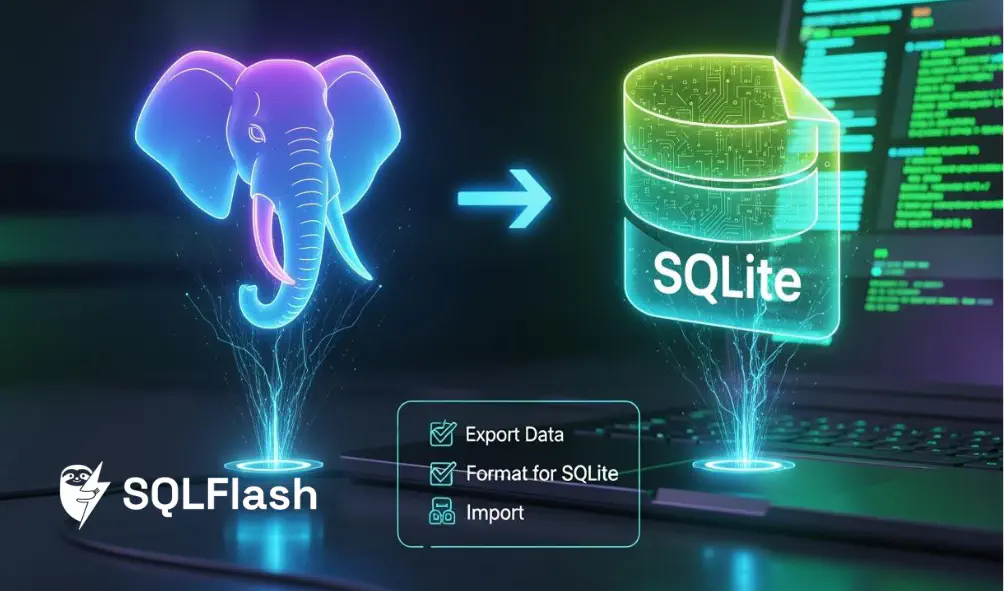

If you’re looking for a database that is both easy to use and fast, SQLite 3.45 is the perfect solution—especially if you’re transitioning from SQLite PostgreSQL environments. SQLite’s simple design allows for quick setup and effortless use, making the switch from PostgreSQL to SQLite PostgreSQL seamless. The latest features in SQLite 3.45 help you work more efficiently:
The concat() and concat_ws() functions let you join strings quickly, similar to what you’re used to in SQLite PostgreSQL.
The timediff() function makes it easy to calculate the time between two dates.
Enhanced JSON functions now utilize the JSONB format for improved performance, aligning with features found in SQLite PostgreSQL systems.
Migrating from PostgreSQL to SQLite PostgreSQL is straightforward. Just follow the steps, and you’ll experience how the new version streamlines your workflow.
SQLite 3.45 is simple to set up and use. It works well for small projects and personal apps.
Before you switch, look at your PostgreSQL setup. Write down all tables, columns, and data types. This helps make the switch smooth.
Use migration tools like pgloader or DBeaver. These tools make moving data easier and help stop mistakes.
Change your app code to work with SQLite. Update connection strings and SQL queries for SQLite.
Always test your app after you switch. Make sure your data is correct and everything works. Check that all features work as they should.
You should know how your database is set up before you start moving it. First, make a list of all tables, columns, and how they connect in your PostgreSQL database. This helps you not forget any important data when you switch to SQLite PostgreSQL.
Look at the data types in your tables. PostgreSQL has many types, but some do not match with SQLite. Here is a table that shows which PostgreSQL types are close to SQLite types:
| PostgreSQL Data Types | SQLite Data Types |
|---|---|
| Numeric types | INTEGER |
| Character types | TEXT |
| Date/Time types | REAL |
| Boolean | BLOB |
| Enumerated types | NULL |
| Geometric types | |
| Network-address types | |
| Arrays | |
| JSON/JSONB | |
| User-defined types |
Pay extra attention to columns with arrays, JSON, or user-defined types. These might need more work when you move your data. If you use schemas in PostgreSQL, remember SQLite does not use them the same way. You should check for name problems and change your schema if needed.
Tip: Write down any special rules, indexes, or foreign keys. This will help you add them again in SQLite PostgreSQL.
Now, look at all the tools and libraries your app uses to talk to the database. Make a list of everything that works with PostgreSQL. You might use ORMs, drivers, or your own scripts.
PostgreSQL uses schemas to keep things organized and stop name problems.
SQLite does not check foreign keys as much as PostgreSQL does.
See if your tools work with SQLite. Some work with both, but others might need updates or new versions. Check if they handle things like transactions, connection pools, and hard queries. These things might work differently in SQLite.
Note: If you use triggers or stored procedures, you must write them again for SQLite. Look through your code for anything that only works with PostgreSQL.
If you check your setup carefully, moving your database will be easier. You will have fewer mistakes and your app should keep working well.
When you switch to SQLite, you will see some big changes. SQLite is a serverless database. You do not need to run a server for it. PostgreSQL needs a server and your app connects to it.
Here is a table that shows how they are built:
| Feature | SQLite | PostgreSQL |
|---|---|---|
| Architecture | Serverless, embedded | Client-server, requires a separate server |
| Scalability | Limited, suitable for small-scale apps | High scalability, supports scaling |
| Concurrency Handling | Locks entire database file during writes | Advanced locking, supports high concurrency |
| Data Type Support | Basic data types | Extensive, including custom types |
SQLite 3.45 has new things like JSON5 support and better decimal numbers. It also has Write-Ahead Logging (WAL) mode. These help you work with harder data and make things faster. WAL mode lets many people use the database at once. This is good for busy apps. PostgreSQL also lets many people use it at once, but it locks things in a smarter way.
You can use SQLite on Windows, macOS, Linux, and Android. It works well for phones, small devices, and IoT gadgets. PostgreSQL is best for big companies, websites, and hard data jobs.
Tip: Use SQLite PostgreSQL for easy and small projects. Use PostgreSQL for big and busy systems.
When you move your data, you might see some things work differently. PostgreSQL has real JSON types and arrays. SQLite keeps JSON as text and does not have arrays. You must use strings or JSON instead.
Here is a table that shows common problems:
| Compatibility Issue | PostgreSQL Behavior | SQLite Behavior |
|---|---|---|
| JSON Handling | Native parsing and indexing | Stores as TEXT, uses parsing functions |
| Array Support | Native array types | No array support, use delimited strings or JSON |
| Advanced SQL Features | Window functions, materialized views, full-text search | Limited advanced SQL features |
| Transaction Behavior | Row-level locking, MVCC | Database-level locking |
Check your app for hard SQL features like window functions or materialized views. If you use these in PostgreSQL, you may need to change your queries for SQLite. Also, remember that transactions work in a simpler way. SQLite locks the whole database, not just rows. This can change how your app saves data.
Note: Test your app after you move it to make sure everything works.
Getting ready for migration helps you avoid trouble. It also keeps your data safe. You need to back up your data first. Then, look at your schema. Plan for changes in your app. Follow these steps to make moving from PostgreSQL to SQLite PostgreSQL easy and successful.
Begin by making a full backup of your PostgreSQL database. This step keeps your information safe if something goes wrong. You can use different tools to help you:
pgloader: Moves data straight from PostgreSQL to SQLite.
DBeaver: Has an easy interface for exporting and importing data.
SQL dump: Makes a file with all your database commands and data.
CSV export/import: Lets you move tables as comma-separated values.
Each tool is good for different things. For example, pgloader is great for direct moves. DBeaver gives you more control over the process. If you want to see how well these tools work, check the table below:
| Tool | Success Rate | Mean Latency (seconds) | 99th Percentile Latency (seconds) |
|---|---|---|---|
| Fly.io | 95.33% | 4.668 | 7.141 |
| SQLite | 100% | 0.006474 | 0.015695 |
Tip: Always keep your backup files somewhere safe. Try restoring your backup on another system before you start the migration.
Next, look at your database schema. This step helps you find what is different between PostgreSQL and SQLite. You need to check table shapes, data types, and connections. Pay close attention to columns with special types like datetime and boolean. These types need changes to work in SQLite.
Here is a table to help you match data types:
| SQLite Type | PostgreSQL Type |
|---|---|
| BOOLEAN (INTEGER 0/1) | BOOLEAN |
| DATETIME or DATE as TEXT | TIMESTAMP or DATE |
You can store dates and times in SQLite as:
TEXT in ISO-8601 format (like ‘2023-05-01 10:00:00’)
INTEGER as Unix time (seconds since 1970)
REAL as a fractional Julian day number
Note: Make sure the order of columns in your tables matches in both databases. This helps stop errors when you import data.
Common problems during schema review include:
Losing data or having mistakes from changed tables or connections
Slowdowns or downtime while moving data
Compatibility problems between database versions
Hard data changes between old and new schemas
No clear plan to go back if migration fails
You should also test your schema changes outside your main system. This helps you find problems early and keeps your main database safe.
After you check your schema, plan how your app will work with SQLite. Some features in PostgreSQL do not exist in SQLite, so you may need to change your code. Here is a simple plan you can follow:
Look at your current database using a tool like atlas schema inspect. This command makes a file that shows your schema.
Edit the SQL file to show how you want your new schema to look. Add or change tables and columns as needed.
Use atlas schema apply to make the changes. This command updates your database to match your new schema.
Tip: Check your app for things like triggers, stored procedures, or hard SQL queries. Rewrite them so they work with SQLite’s features.
You may also need to update your integrations and ETL jobs. Make sure everything works with the new database. Test your app in a safe place before you go live.
By following these steps, you get your data, schema, and app ready for a successful move to SQLite PostgreSQL. Careful planning and testing help you avoid problems and keep your project on track.
Image Source: unsplash
Migrating your data from PostgreSQL to SQLite involves three main steps. You will export your data from PostgreSQL, import it into SQLite, and use migration tools to make the process smoother. Each step requires careful attention to detail to ensure your data stays accurate and your application continues to work as expected.
Start by exporting your data from PostgreSQL. You can use several methods, but the most common are SQL dumps and CSV exports. Each method has its own benefits.
SQL Dump: This method creates a file with SQL commands that recreate your tables and insert your data.
CSV Export: This method saves your table data in a simple, comma-separated format.
To export your data using an SQL dump, you can use the following command:
| |
This command creates a file called dump.sql with all your data as SQL insert statements. Before you use this file with SQLite, you need to make some changes:
Remove any PostgreSQL-specific commands, such as SET statements and sequence queries.
Adjust boolean values. Replace true and false with 't' and 'f' or with 1 and 0, depending on your schema.
Wrap your SQL commands in a transaction by adding BEGIN; at the start and END; at the end.
Tip: Always check your exported file for special characters and NULL values. These can cause problems during import.
After you prepare your export file, you can import your data into SQLite. If you used a CSV file, you can use the .import command in the SQLite shell. For SQL dumps, you can use the .read command.
Here is how you can import a CSV file:
| |
If you use an SQL dump, run:
| |
When you import data, you may face some common challenges:
Ensuring matching column types
Managing special characters
Addressing error messages related to column mismatches
You should review your data after import to make sure everything looks correct. Pay close attention to columns with dates, booleans, or special formatting.
Note: If you see errors about column mismatches, check that your table definitions in SQLite match your original PostgreSQL schema.
Migration tools can help you move your data more easily. Some popular tools include pgloader and DBeaver. These tools automate many of the steps and help you avoid manual errors.
pgloader: This tool reads your PostgreSQL database and writes the data directly to SQLite. It handles many data type conversions for you.
DBeaver: This tool provides a graphical interface. You can export data from PostgreSQL and import it into SQLite with just a few clicks.
When you use these tools, you still need to check your data for accuracy. Some tools may not handle every special case, such as custom data types or complex relationships.
Tip: Test your migration on a small sample of your data first. This helps you catch problems early and adjust your process before moving all your data.
If you follow these steps, you can move your data from PostgreSQL to SQLite PostgreSQL with confidence. Careful preparation and the right tools make the process smooth and reliable.
When you switch from PostgreSQL to SQLite, you need to change your code. You should check how your app talks to the database. You also need to change your SQL queries. Look at your libraries or ORM tools too. Each step helps your app work well with SQLite.
You have to change your connection string for SQLite. PostgreSQL uses a network to connect. SQLite uses a file path instead. You do not need a username or password for SQLite.
Example:
| |
Tip: Look for connection details in your code. Change them to use the SQLite file path.
You need to change your SQL queries for SQLite. SQLite and PostgreSQL use data types and syntax in different ways. SQLite does not force strict data types. PostgreSQL blocks wrong types, but SQLite lets almost any value in.
| Feature | PostgreSQL | SQLite |
|---|---|---|
| Data Type Enforcement | Strictly enforces declared types | Types are more like hints |
| Example Table Creation | CREATE TABLE products (id SERIAL PRIMARY KEY, name TEXT NOT NULL, price NUMERIC(10,2)); | CREATE TABLE products (id INTEGER PRIMARY KEY, name TEXT, price REAL); |
| Invalid Type Handling | Rejects invalid types (e.g., ’expensive') | Accepts any type (e.g., ’expensive') |
Check your table creation statements. Change them to match how SQLite works. Use INTEGER PRIMARY KEY instead of SERIAL. Use REAL for decimal numbers. Test your queries to make sure they work.
You might use an ORM or a database library. Many ORMs work with both PostgreSQL and SQLite. You should check if yours does. Change your settings to use SQLite. Test your migrations and queries.
Keep track of database versions and changes.
Write migrations you can undo if needed.
Test migrations on your computer before updating your main app.
Use automation tools to help with migration and avoid mistakes.
Note: Testing helps you find problems early. Run your app with the new database before you go live.
If you follow these steps, your code will work well with SQLite. Your app will stay reliable and ready for updates.
After you finish moving your data, you need to check if it is safe and correct. There are a few ways to do this. First, count the rows in your old PostgreSQL tables and your new SQLite tables. Make sure the numbers match. Next, use checksums or math functions to check important number fields in both databases. Look at columns like dates and booleans to see if the values are right. Keep your backup of SQLite until you know everything is correct.
Tip: Always check your data before you delete old backups. This helps you keep important information safe.
You need to test your app to make sure it works with SQLite. Automated tests help you find problems fast. You can use different kinds of tests. Extraction validation checks if you moved all the data you need. Transformation verification makes sure business rules work the way they should. Load validation checks if your data goes into SQLite the right way. End-to-end business validation tests if your app can do real business tasks.
You can use tools like Selenium, Cypress, or Playwright for automated UI testing. These tools help you check if tables, forms, and changing content show the right data. Run tests on different devices and browsers to make sure your app looks good everywhere. Functional testing lets you automate user actions, like logging in or searching, to make sure features work with the new database.
Note: Regression testing helps you find old bugs that might come back after migration.
You might see some problems when you move your data. Here is a table with a common problem and how to fix it:
| Issue Description | Resolution |
|---|---|
| Handling of byte array columns (byte[] type) in SQLite | Cast the SQLite blob type to PostgreSQL’s bytea type during migration |
If you see errors with byte arrays, check your data types and use the right way to change them. Always test your fixes before you use your app for real.
Tip: Write down any changes you make when you fix problems. This helps you fix things faster next time.
You now know how to move from PostgreSQL to SQLite 3.45. SQLite 3.45 is a small database. It does not need a server. You can set it up fast. It is easy to use. You can work with records using simple commands. You do not need extra software to use it.
Benefits of SQLite 3.45:
Simple to use and move around
Quick for small projects
Works well with other tools
Always test your move before you finish. Use help from the community if you get stuck. The table below shows choices you have when moving your data:
| Migration Option | Description |
|---|---|
| create tables | Makes tables using SQLite information |
| truncate | Clears tables before adding new data |
| data only | Moves just the data, not the table setup |
Think about what your app needs. SQLite is best for phones and apps for one person. PostgreSQL is better for big apps with many users.
You connect by using a file path, not a server address.
| |
You do not need to enter a username or password.
Some queries must be changed before you use them. SQLite has different data types and rules.
Tip: Try each query in SQLite first to make sure it works.
You can pick pgloader, DBeaver, or export and import with CSV.
| Tool | Use Case |
|---|---|
| pgloader | Moves data directly |
| DBeaver | Lets you control the process |
| CSV | Good for simple tables |
Count the rows in both databases and compare important fields.
Always look at dates, booleans, and special columns to make sure they are right.
SQLFlash is your AI-powered SQL Optimization Partner.
Based on AI models, we accurately identify SQL performance bottlenecks and optimize query performance, freeing you from the cumbersome SQL tuning process so you can fully focus on developing and implementing business logic.
Join us and experience the power of SQLFlash today!.